
Now Reading: Where to Find Your eBay Item Number: The Ultimate Guide
-
01
Where to Find Your eBay Item Number: The Ultimate Guide

Where to Find Your eBay Item Number: The Ultimate Guide

Introduction: Why the eBay Item Number Matters
Every listing on eBay is assigned a unique identifier known as the eBay item number. This small detail plays a critical role in almost every interaction you have on the platform. Understanding its purpose and knowing when to use it simplifies your eBay experience significantly.
This unique numerical code acts as a direct reference, streamlining communication, tracking, and dispute resolution. It ensures accuracy and efficiency across various eBay processes for both buyers and sellers.
What is an eBay Item Number?

The eBay item number is a distinct, multi-digit code automatically generated and assigned to every single listing created on the eBay marketplace. It serves as a permanent reference point for that specific item, regardless of its sale status. This unique identifier is essential for navigating the vast number of products available on the platform and managing transactions effectively.
A Unique Identifier for Every Listing
Each product or service listed for sale on eBay receives its own individual item number. This numeric code remains with the listing from creation until it is removed from the site. It acts as a permanent digital fingerprint for that specific offering.
Distinguishing Between Similar Items
Even if multiple sellers offer the exact same product, each individual listing will have a different eBay item number. This ensures clarity and prevents confusion, allowing users to precisely identify and refer to one particular offering among many.
Common Scenarios Where You’ll Need It
The eBay item number is a crucial piece of information in numerous situations, particularly when you need to refer to a specific transaction or listing. It acts as a universal reference point, making many interactions on the platform more efficient and accurate. Knowing when and where to use it can save time and prevent misunderstandings.
Contacting Seller/Buyer or eBay Support
When communicating with a seller, buyer, or eBay customer service about a specific item, providing the item number is essential. It allows all parties to quickly locate the exact listing and understand the context of your inquiry or issue. This accelerates problem resolution.
Tracking Orders, Returns, and Disputes
The item number is vital for managing post-purchase activities. You will need it to track the shipping status of an order, initiate a return process, or formally file a dispute if an issue arises. It links directly to the transaction details.
Referencing Specific Listings for Research or Comparison
For research purposes, comparing prices, or analyzing market trends, the eBay item number is highly useful. It enables you to revisit specific past or current listings directly, providing a concrete reference point for your observations and comparisons.
Finding the Item Number on an Active Listing (Desktop)

Locating the unique item number for a product on an active listing is straightforward on a desktop computer. This number is crucial for referencing specific products, tracking, or communicating with sellers. You can find this essential detail using a few simple methods directly on the product page.
Directly on the Product Page
When viewing an active listing, the item number is often readily visible without needing to navigate through multiple tabs. This offers the quickest way to identify the unique identifier for your desired product. Look for specific fields or elements on the page that display this critical information.
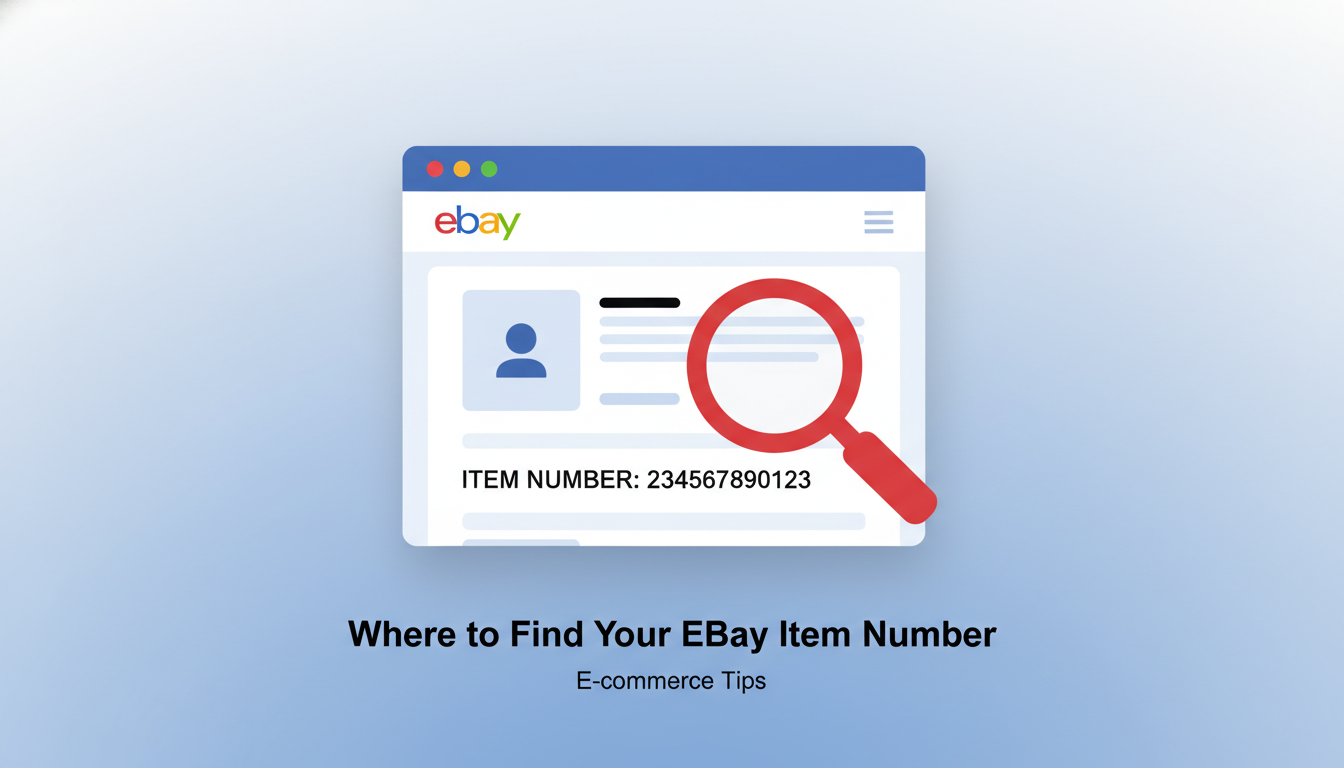
Locating the ‘Item number’ field (typically below the main description or shipping details)
Scroll down the product page after the main image and description areas. You will often find a dedicated field labeled “Item number” or “Product ID.” This is usually located near shipping information or seller details.
Understanding the URL structure (optional, but useful for advanced users)
For those comfortable with web addresses, the item number is sometimes embedded in the URL itself. Look for a long string of numbers towards the end of the URL. This sequence often directly corresponds to the product’s unique item number.
Utilizing the ‘Description’ Tab
Sometimes, the item number might not be immediately obvious on the main product view. In such cases, the ‘Description’ tab offers a comprehensive overview of the product. This section often contains all technical specifications and unique identifiers, including the item number.
Scrolling down to the ‘Item number’ section within the full description
Click on the ‘Description’ tab if it’s available on the product page. Once inside, scroll through the detailed text. The item number is frequently listed here, often under a dedicated heading or within a technical specification list.
Finding the Item Number on an Active Listing (Mobile App)

Locating an item number on a mobile app can differ from the desktop experience. This guide will help you quickly find the specific item number directly from your smartphone or tablet. Understanding where to look saves time and ensures you have the correct product identifier.
The process often involves navigating through various sections of the listing details. Always remember that app interfaces can vary slightly between updates.
Within the Listing Details
Most mobile apps display the item number within the product’s main information section. This area provides all essential specifications and details about the item. Knowing where to focus your search makes the process very efficient.
This section is designed to give shoppers a comprehensive overview. Therefore, the item number is usually a key piece of information presented here.
Navigating to the ‘About this item’ or ‘Details’ section
When viewing an active listing, scroll down past the main images and description. Look for sections labeled “About this item,” “Details,” “Specifications,” or “Product Information.” Tapping on these might expand a collapsed section to reveal more data.
This expanded view often contains a wealth of technical and descriptive information. It’s the primary place for detailed product attributes.
Identifying the ‘Item number’ field among other specifications
Within the expanded details section, scan for a specific field titled “Item number,” “Product ID,” or “Listing ID.” This unique identifier is typically a string of digits. It helps distinguish one listing from another within the platform.
The item number is crucial for referencing specific products. It ensures accuracy when communicating with sellers or customer support.
Using Share Options (if applicable)
Sometimes, the item number can be found indirectly through the app’s sharing features. This method might not always be available or immediately obvious. However, it offers an alternative if you struggle to find it in the listing details.
This approach leverages the app’s functionality to generate shareable content. The item’s unique identifier is often embedded within this shared data.
Sometimes the item number is included in the shared link or details
Tap the “Share” icon (often represented by an arrow or three dots) on the listing page. Choose to share the link via email or a messaging app. The generated link or accompanying text sometimes contains the item number directly within the URL or the message body.
Examine the shared text or URL carefully for a sequence of numbers. This can be a quick way to extract the identifier.
Finding the Item Number for Items You’ve Bought

Locating the unique item number for past eBay purchases is often necessary. This number helps track orders, communicate with sellers, or reference specific transactions. Fortunately, eBay provides straightforward ways to retrieve this crucial detail.
This guide will walk you through the primary methods for finding the item number for items you’ve bought. Knowing these steps ensures you can quickly access the information whenever needed.
Through ‘My eBay: Purchase History’
Your ‘My eBay: Purchase History’ is the central hub for all your past transactions on the platform. It offers a comprehensive record, making it the most reliable place to find details like the item number for any purchase. This section provides a detailed breakdown of each item, including its status and relevant identifiers.
Navigating this feature allows you to easily revisit any order. This method is highly recommended for its accuracy and the breadth of information it provides for every item you have acquired.
Accessing your purchase list
Begin by logging into your eBay account on a desktop browser or through the mobile app. Navigate to ‘My eBay’ from the top navigation bar. Then, select ‘Purchase History’ from the dropdown menu to view a chronological list of all your bought items.
Clicking on the specific item to view its full details
Once in your purchase history, locate the specific item you are interested in. Click on the item title to open its full details page. The item number is prominently displayed on this page, often near the item’s title or description.
Checking Confirmation Emails from eBay
Another convenient way to find an item number is by reviewing the confirmation emails eBay sends after each purchase. These emails serve as digital receipts and typically include all the essential transaction details. This method is especially useful if you prefer to avoid logging into your eBay account.
Your email inbox can act as a valuable archive for your purchase records. It provides a quick reference point for key information, including the specific item number you might be looking for.
Locating the purchase confirmation email
Open the email account linked to your eBay profile. Search your inbox for emails from eBay, specifically looking for purchase confirmation messages. Use keywords like “eBay purchase,” “order confirmation,” or the seller’s name to narrow your search.
Finding the item number within the email body
Once you open the relevant confirmation email, scan its content. The item number is usually clearly labeled within the email body, often near the item’s title, price, or transaction ID. It’s typically presented as “Item #,” “eBay item number,” or a similar designation.
Finding the Item Number for Items You’ve Sold

Locating the unique item number for products you have sold is essential for various reasons. This identifier helps with record-keeping, customer service inquiries, and managing returns. Fortunately, eBay provides several straightforward ways to find this crucial detail for your completed sales.
Through ‘My eBay: Selling’ or ‘Seller Hub’
The most direct method to find an item number for items you’ve sold is through your eBay account. Both ‘My eBay: Selling’ and ‘Seller Hub’ offer comprehensive tools to manage your listings and track past transactions. These platforms centralize all your selling activities, making it easy to access specific sale information.
Navigating to ‘Sold’ or ‘Orders’ section
Begin by logging into your eBay account. From there, access either ‘My eBay’ and then select ‘Selling,’ or navigate directly to ‘Seller Hub.’ Within these dashboards, look for the ‘Sold’ or ‘Orders’ section. This area lists all your completed sales, providing an overview of your past transactions.
Accessing the transaction details for the specific sale
Once in the ‘Sold’ or ‘Orders’ section, find the specific item you need. Click on the listing title or the ‘View order details’ link associated with that sale. This action will open a detailed page where you can typically find the item number clearly displayed alongside other transaction information.
Reviewing Shipping Labels and Invoices
Beyond the online platform, physical documentation generated during the sales process can also contain the item number. Always retain copies of your shipping labels and invoices, as they serve as valuable records. These documents often include critical details about the transaction, including the unique listing identifier.
Where the item number might be printed on official documents
The item number is frequently printed on the shipping label you generated for the sold item. Look for it near the buyer’s address or as part of the order details section. Similarly, if you printed an invoice or packing slip, the item number is typically present on these documents, often near the item description or price.
What if You Can’t Find It? Troubleshooting Tips

Locating a specific item number on eBay can sometimes be challenging. If you are still struggling to find this crucial identifier, several troubleshooting steps can help. These solutions aim to resolve common issues users face when searching for transaction details.
This section provides practical advice to help you successfully retrieve the eBay item number you need.
Check Different Devices or Platforms
Sometimes, the way information displays can vary across different access points. If you are having trouble finding the item number on one device, try switching to another. This simple change can often reveal hidden details or provide a different interface.
Switching from mobile to desktop (or vice-versa)
The eBay mobile app and the desktop website offer distinct user interfaces. Information, including the item number, might be more prominently displayed or easier to navigate on one platform over the other. Trying both can often resolve visibility issues.
Trying a different browser
Browser-specific issues, like cached data or extensions, can sometimes interfere with how web pages load. If you are unable to find the item number, try accessing eBay through a different web browser. This can eliminate potential display problems.
Search by Keyword, Seller Name, or Buyer Name
If the direct method of finding the item number isn’t working, leverage eBay’s robust search capabilities. You can often pinpoint the exact listing or transaction by using relevant associated information. This approach helps narrow down your search even without the specific number.
Using eBay’s internal search functions effectively
eBay’s search bar allows for detailed queries. Inputting keywords from the item description, the seller’s username, or even your own buyer name can help locate past transactions. Filtering by date range or category can further refine your search results.
Contacting eBay Support (As a Last Resort)
When all other troubleshooting methods fail, reaching out to eBay’s customer support team is your best option. They have access to comprehensive transaction data and can assist in locating elusive item numbers. Prepare to provide them with as much detail as possible.
What information to provide if the item number remains elusive
When contacting support, offer any details you remember about the transaction. This includes the approximate purchase date, seller’s name, item description, price, and your buyer username. These details help eBay representatives quickly identify the correct item number for you.
Conclusion: Streamlining Your eBay Experience
Improving your eBay experience is easily achieved with effective strategies. By implementing the tips and techniques discussed, you can navigate the platform with greater efficiency. This approach leads to more successful buying and selling interactions.
Embracing streamlined methods transforms your engagement with eBay. You gain confidence and save valuable time on the platform. Ultimately, a more organized approach significantly enhances your overall satisfaction.
Therefore, apply these insights to your daily eBay activities. Enjoy a smoother, more effective, and ultimately more rewarding eBay experience going forward.